CSS Flexbox
Create flexible one-dimensional rows and columns, and align items along both axes.
Creating layouts is one of the most important parts of web design. Before Flexbox, arranging elements side by side or centering content often required complicated CSS techniques. Flexbox, short for Flexible Box Layout, was introduced to make layout design easier, cleaner, and more responsive.
Flexbox helps developers align, arrange, and distribute space between elements inside a container. It is widely used in modern websites because it simplifies many common layout tasks.
Understanding Flex Containers and Flex Items
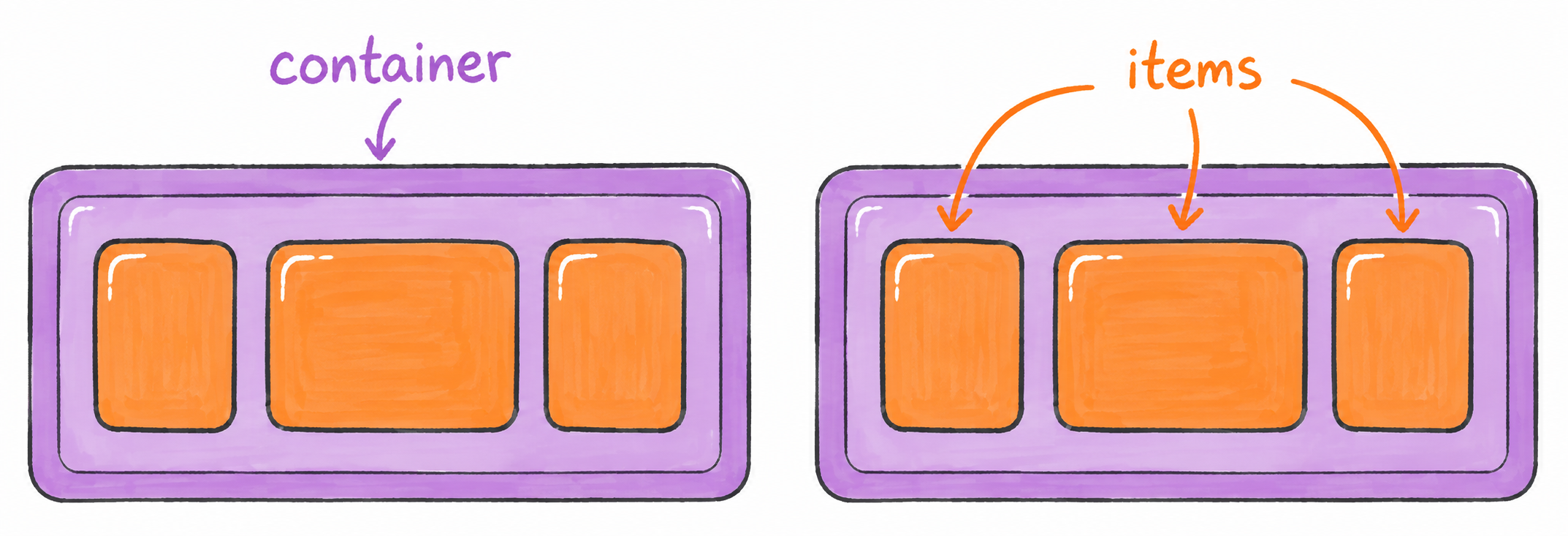
Flexbox works with two main parts:
- Flex Container
- Flex Items
The parent element becomes the flex container, and its child elements become flex items.
Example
<div class="container">
  <div>Item 1</div>
  <div>Item 2</div>
  <div>Item 3</div>
</div>.container {
display: flex;
}By setting display: flex, all child elements become flex items and are placed in a row by default.
Flex Container
Flex Direction
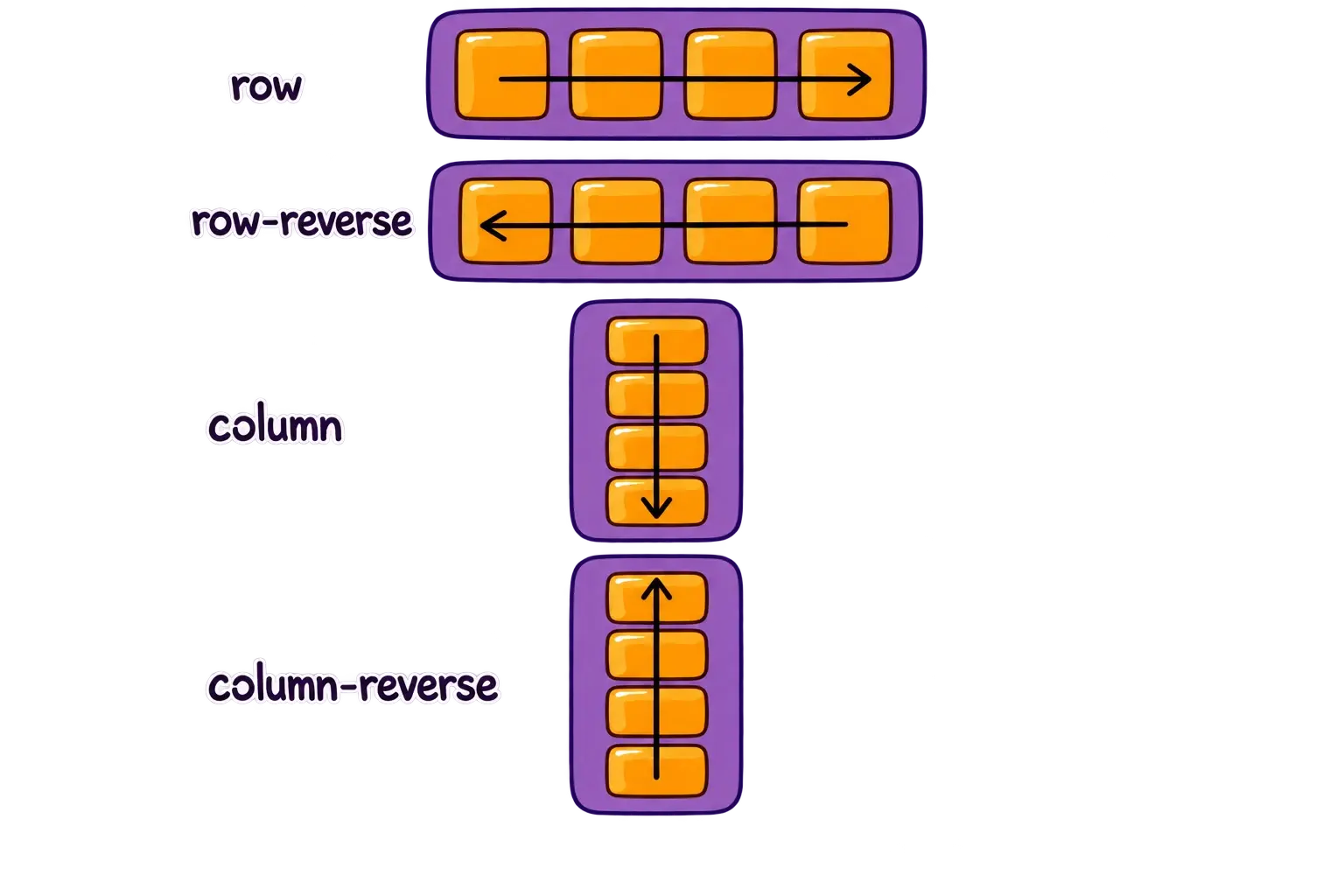
The flex-direction property controls the direction of flex items.
.container {
  display: flex;
  flex-direction: row | row-reverse | column | column-reverse;
}
Flex Wrap
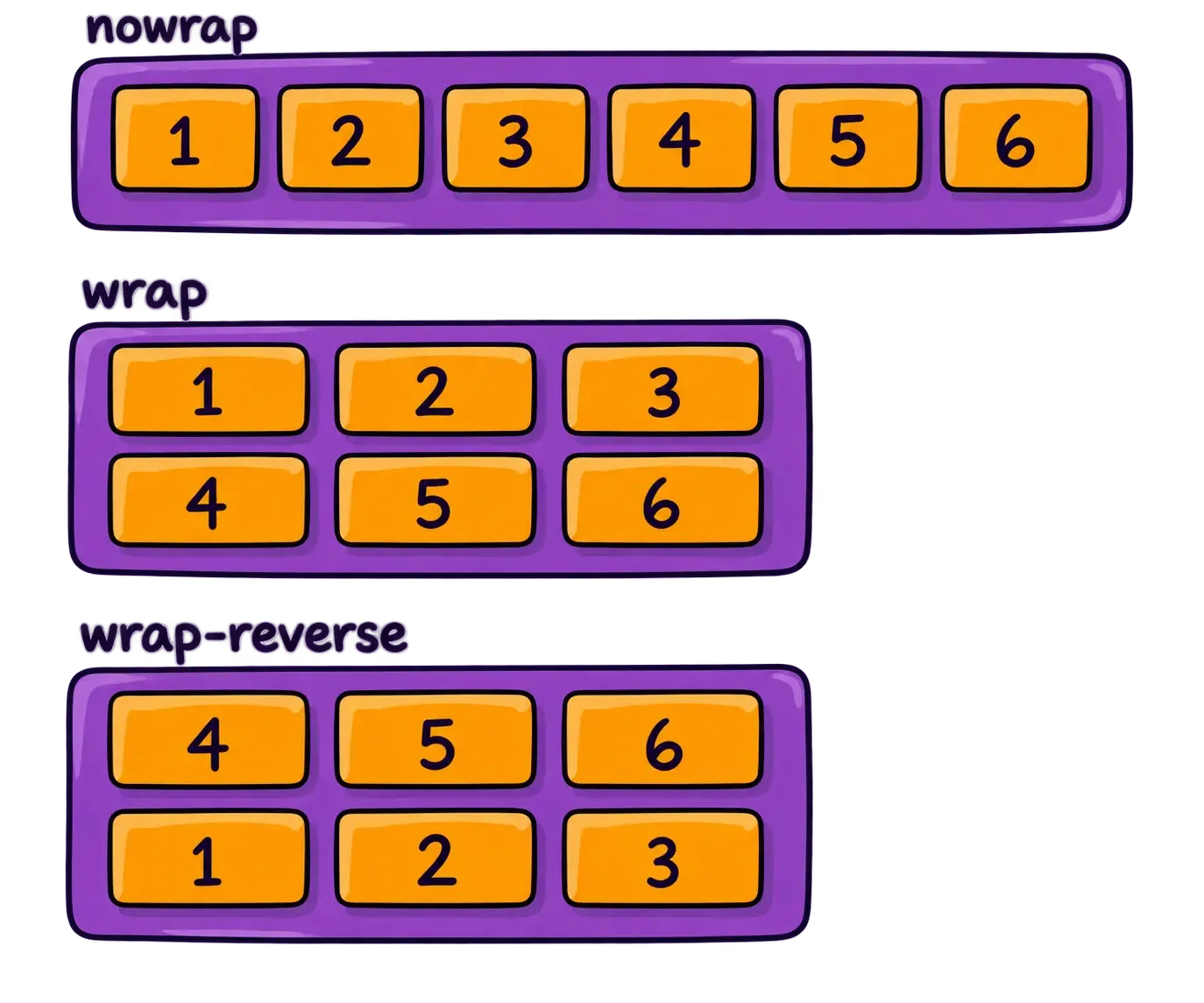
The flex-wrap property controls whether flex items stay on one line or wrap onto multiple lines.
.container {
  display: flex;
  flex-wrap: nowrap | wrap | wrap-reverse;
}
Justify Content
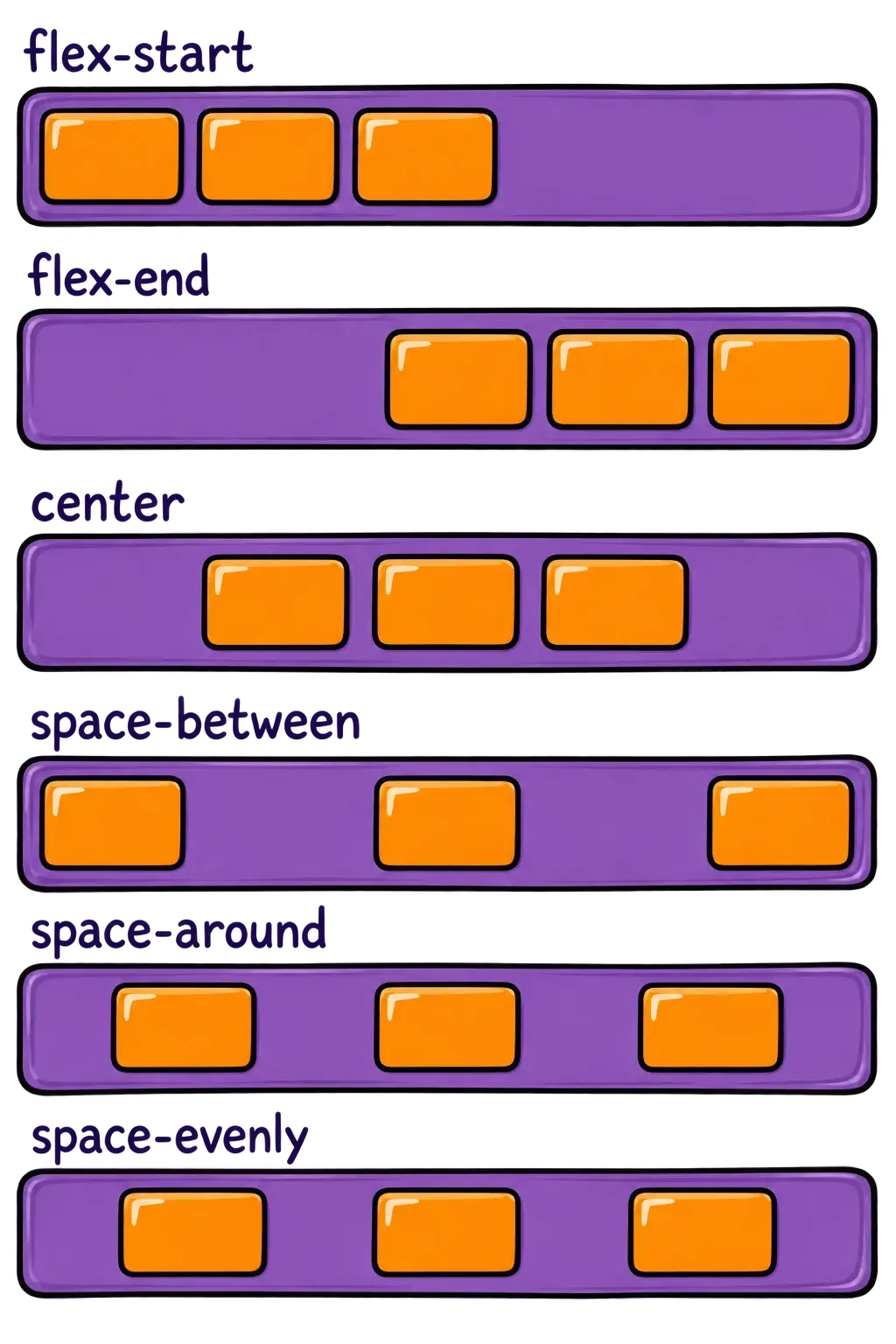
The justify-content property aligns items along the main axis.
Example
.container {
  display: flex;
  justify-content: flex-start | flex-end | center | space-between | space-around | space-evenly;
}
Align Items
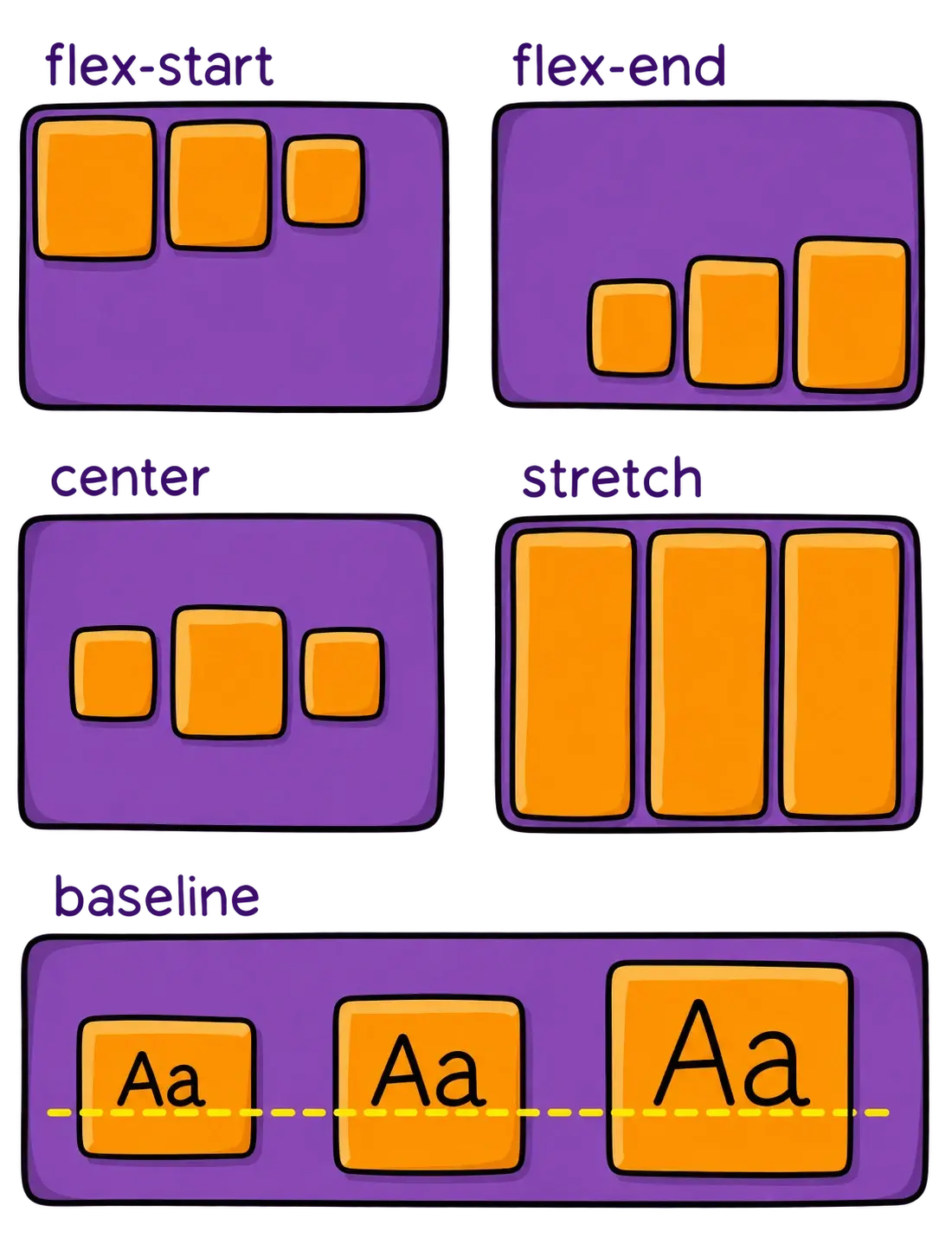
The align-items property aligns items along the cross axis.
Example
.container {
  display: flex;
  align-items: stretch | flex-start | flex-end | center | baseline;
}
Align Content
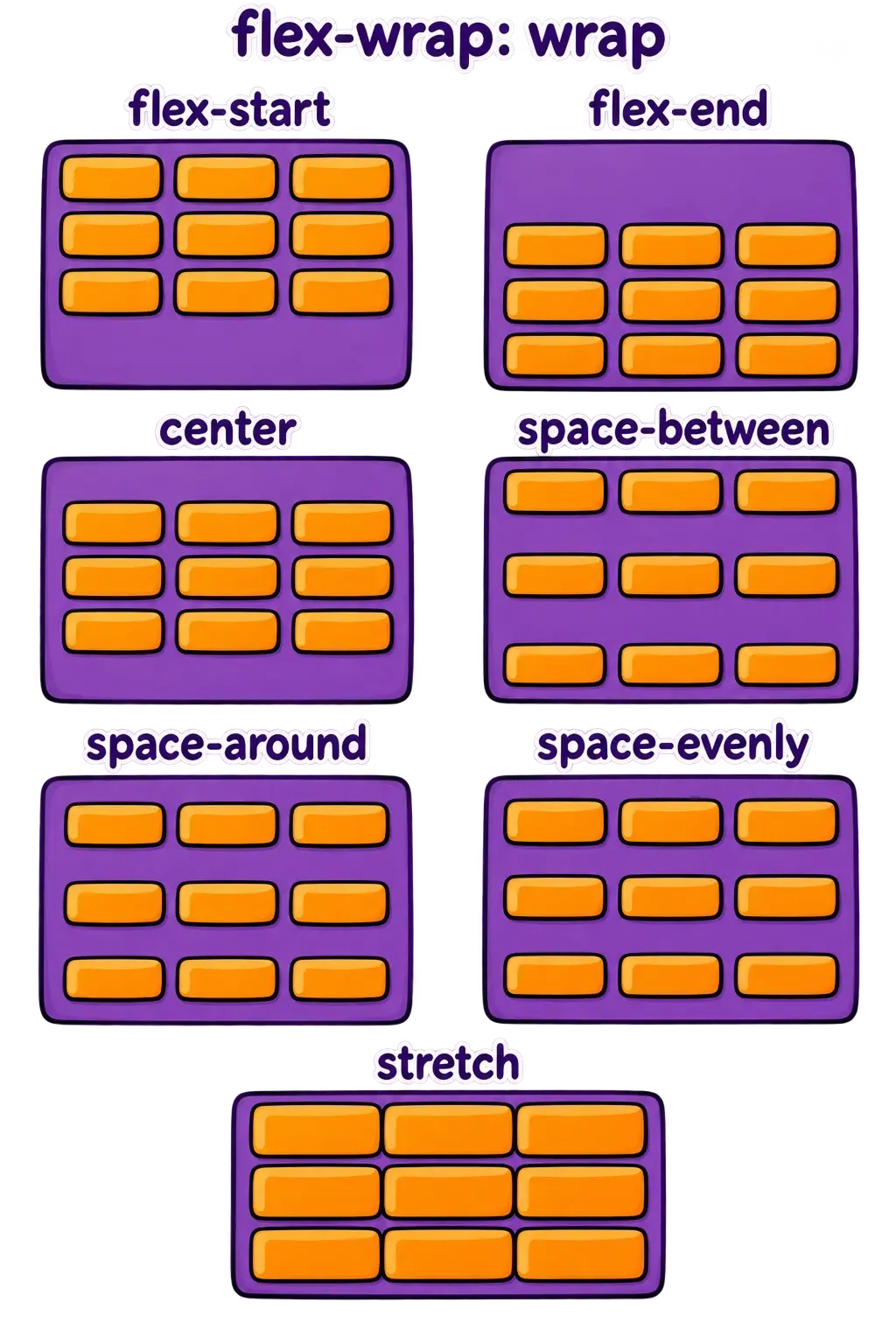
The align-content property distributes flex lines along the cross axis when wrapping is enabled and extra space is available.
.container {
  display: flex;
  align-content: flex-start | flex-end | center | space-between | space-around | space-evenly | stretch;
}
Gap
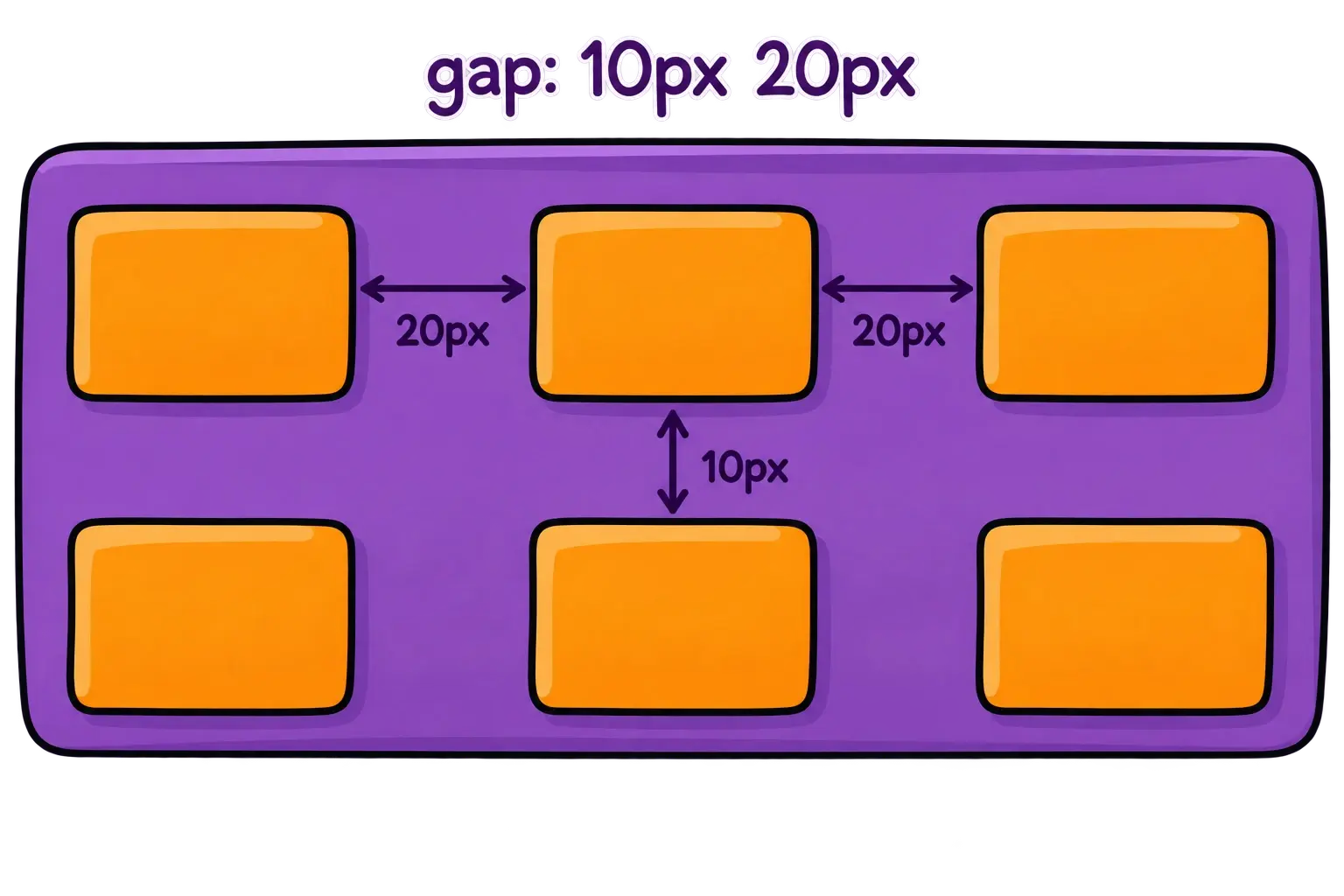
The gap property sets the spacing between flex items and lines.
.container {
  display: flex;
  gap: 10px;
  gap: 10px 20px; /* row-gap column-gap */
  row-gap: 10px;
  column-gap: 20px;
}
Flex Items
Order
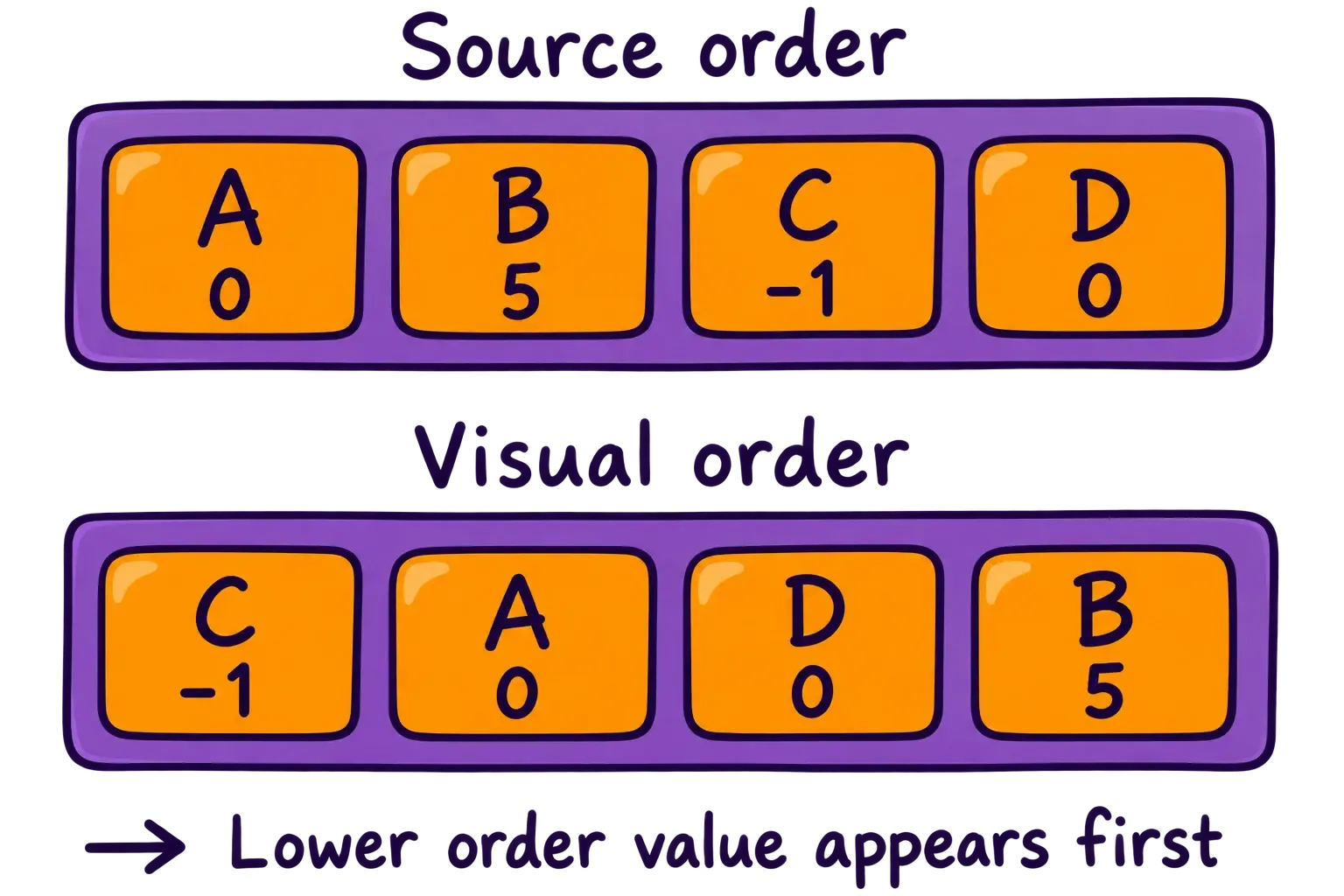
The order property controls the visual order of flex items. Items with lower values appear first.
.item {
  order: 5; /* default is 0 */
}
Flex Grow
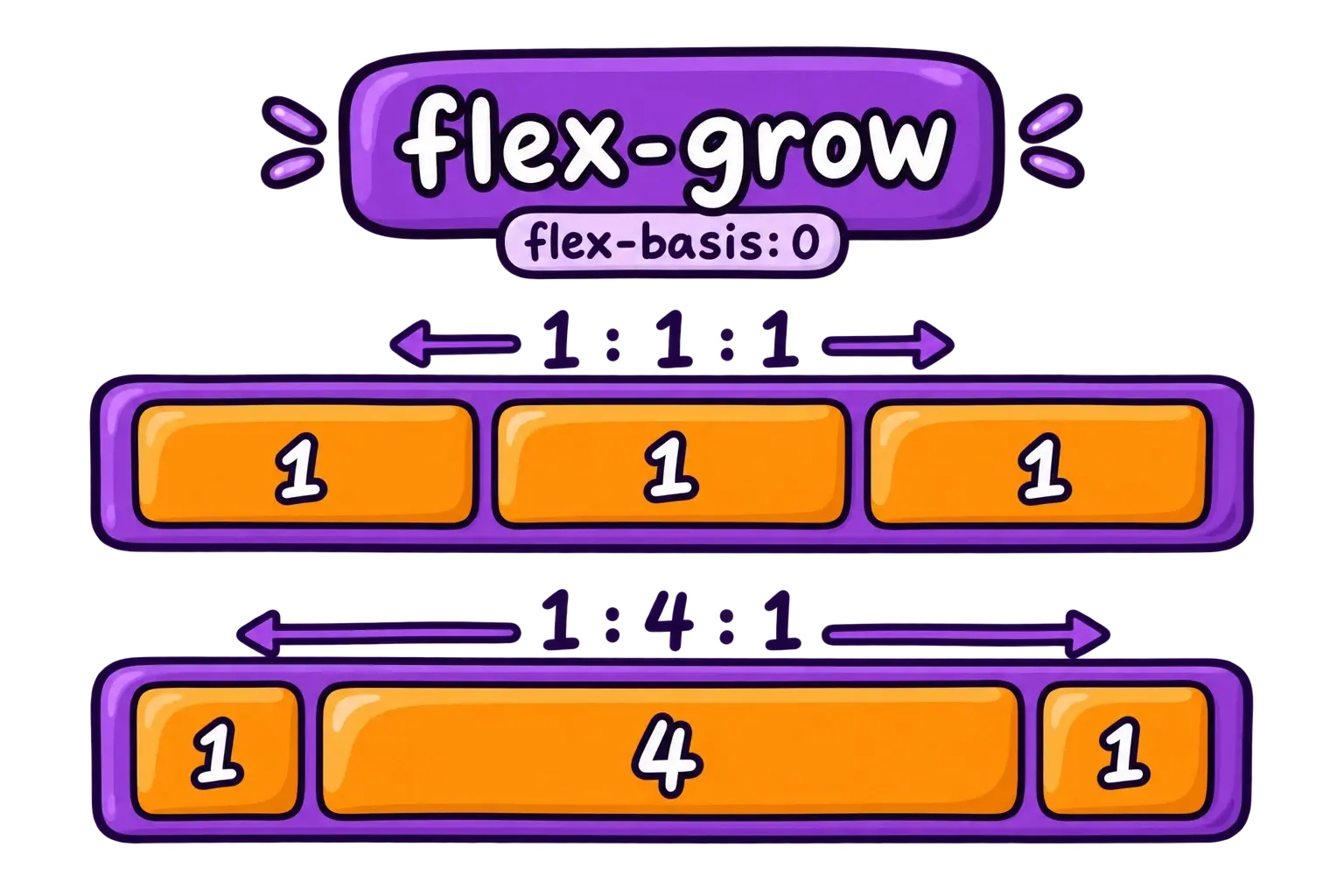
The flex-grow property controls how much of the available space a flex item receives relative to the other items.
.item {
  flex-grow: 4; /* default 0 */
}
Flex Basis
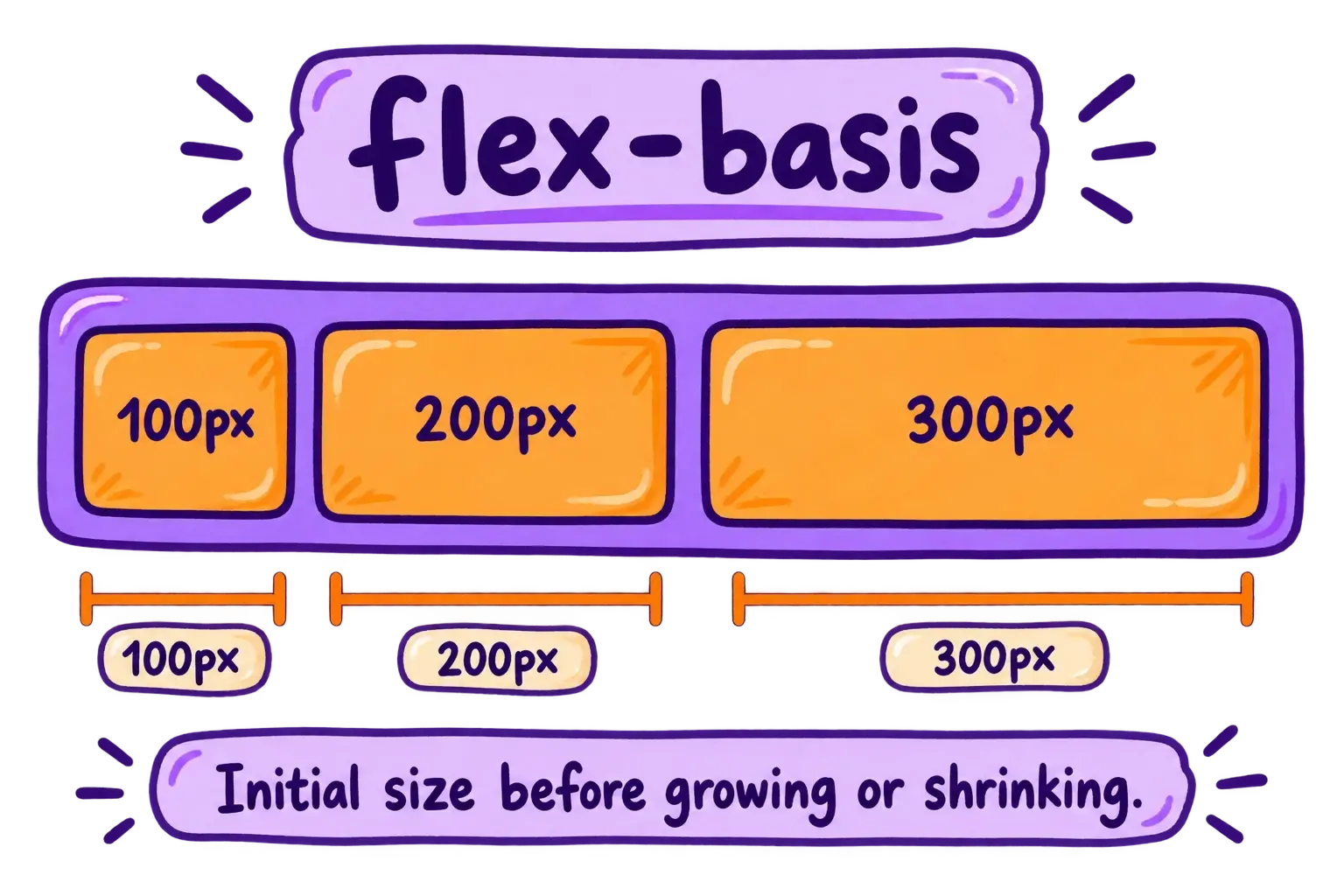
The flex-basis property sets the initial size of a flex item along the main axis before it grows or shrinks.
.item {
  flex-basis: <length> | auto; /* default auto */
}
Align Self
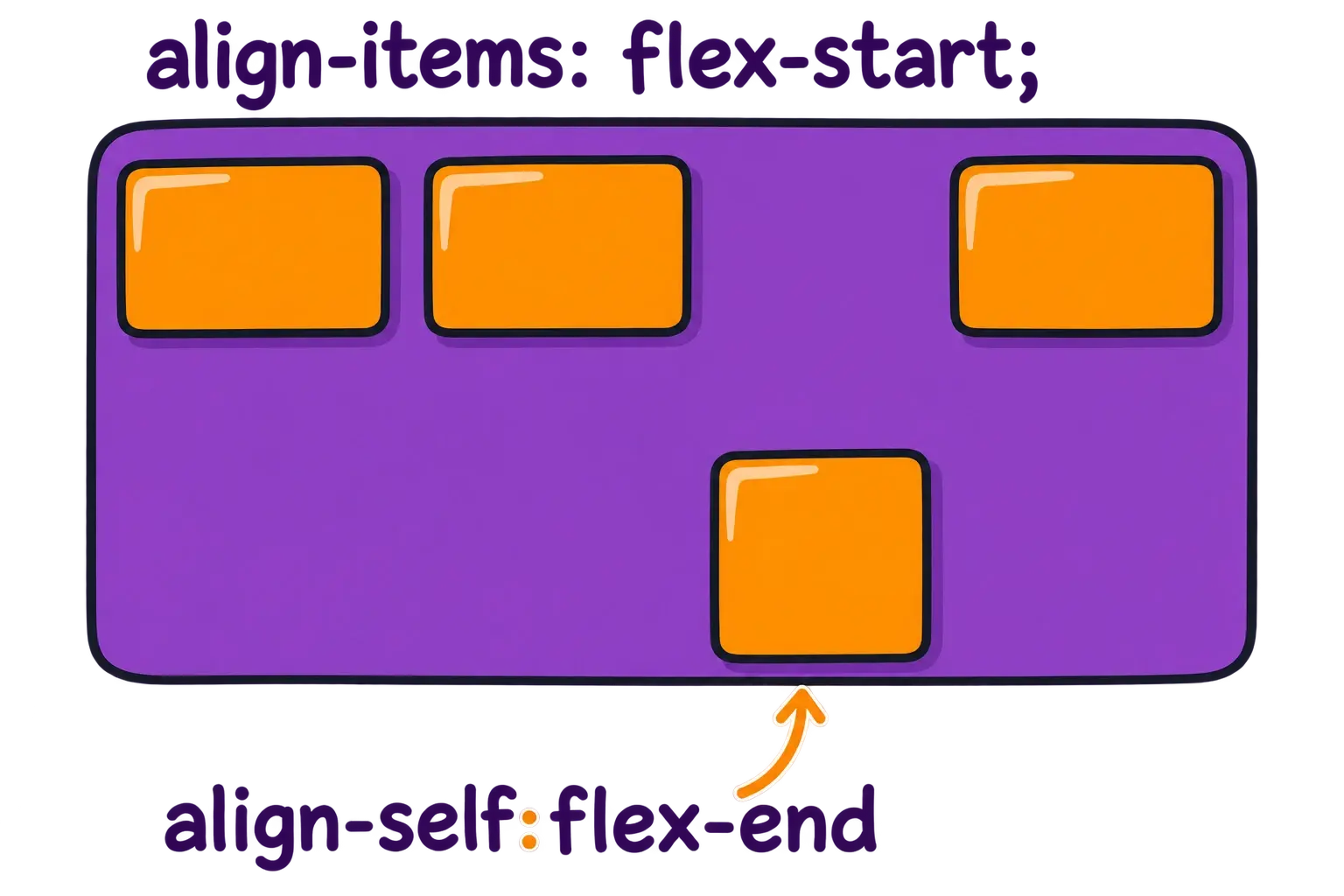
The align-self property overrides the align-items setting of the container for an individual flex item.
.item {
  align-self: auto | flex-start | flex-end | center | baseline | stretch;
}