CSS Positioning
Place elements with static, relative, absolute, fixed, and sticky positioning.
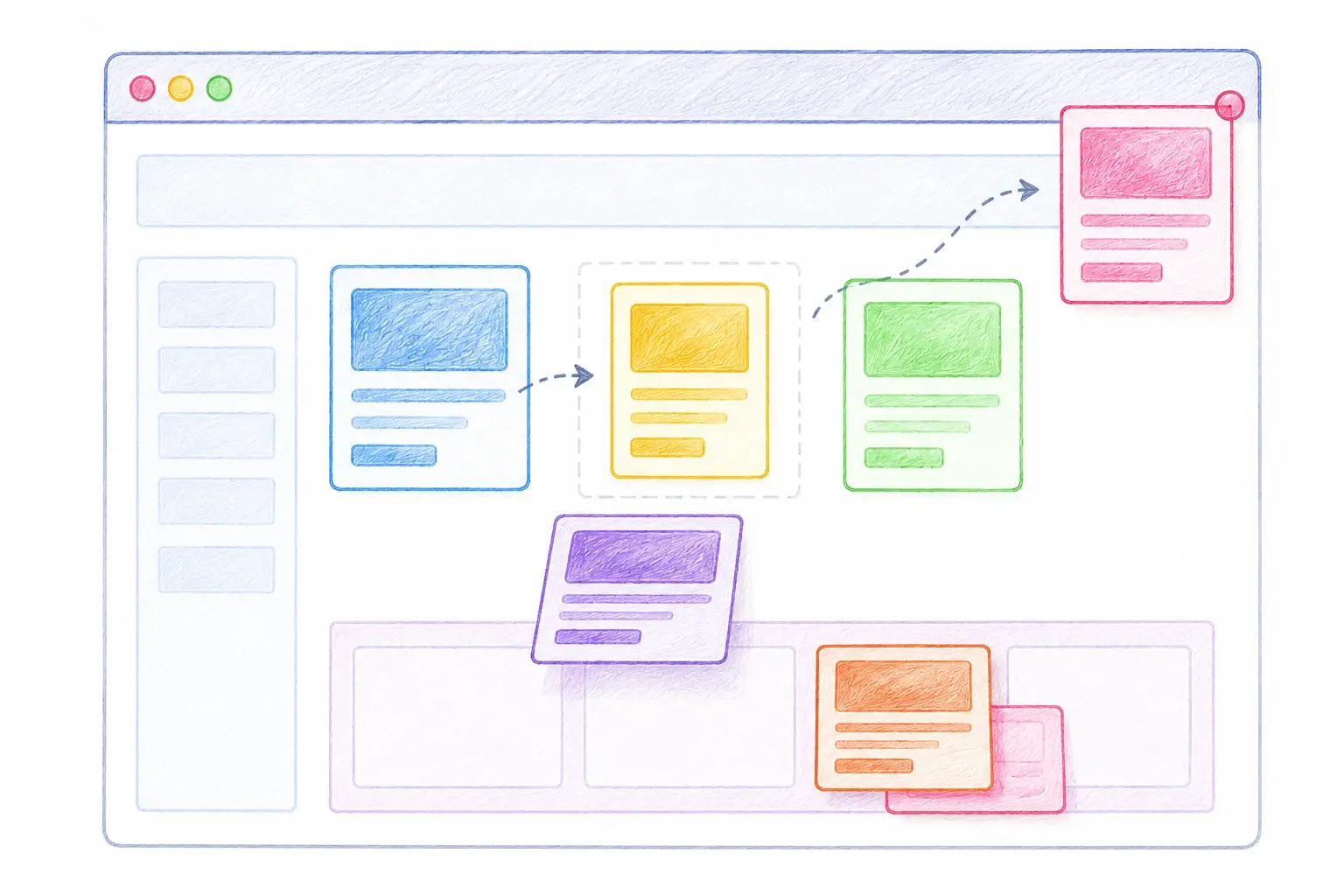
Positioning is one of the most important concepts in CSS. It allows developers to control exactly where elements appear on a webpage. While HTML places elements in a natural order from top to bottom, CSS positioning gives you more control over their location.
For example, you may want a navigation bar to stay at the top of the page, a notification badge to appear on a product image, or a "Back to Top" button to remain visible while scrolling. All of these can be achieved using CSS positioning.
Why Is Positioning Important?
Positioning helps developers:
- Control element placement
- Create advanced layouts
- Build menus and navigation bars
- Add badges, popups, and tooltips
- Improve user experience
Understanding positioning is essential for building modern websites and web applications.
The Position Property
The position property determines how an element is positioned on a webpage.
CSS provides five main positioning values:
- static
- relative
- absolute
- fixed
- sticky
Each one behaves differently.
Static Positioning
static is the default positioning value for all HTML elements.
Example
.box {
  position: static;
}
With static positioning:
- Elements appear in their normal location.
- Properties like top, left, right, and bottom do not work.
Most elements use static positioning unless changed.
Relative Positioning
relative positioning allows an element to move from its original position while still keeping its space in the layout.
Example
.box {
  position: relative;
  top: 20px;
  left: 30px;
}
This moves the element:
- 20 pixels down
- 30 pixels to the right
The original space remains reserved.
Absolute Positioning
absolute positioning removes the element from the normal page flow and positions it relative to its nearest positioned parent.
Example
.badge {
  position: absolute;
  top: 10px;
  right: 10px;
}
This is commonly used for:
- Notification badges
- Tooltips
- Dropdown menus
- Image overlays
Since the element is removed from the normal flow, other elements behave as if it does not exist.
Fixed Positioning
fixed positioning keeps an element in the same place even when the user scrolls.
Example
.button {
  position: fixed;
  bottom: 20px;
  right: 20px;
}
Common uses include:
- Back-to-top buttons
- Chat widgets
- Floating action buttons
The element stays visible at all times.
Sticky Positioning
sticky positioning combines relative and fixed behavior.
Example
.header {
  position: sticky;
  top: 0;
}
The element behaves normally until it reaches the top of the screen, then it sticks in place while scrolling.
This is often used for:
- Navigation bars
- Table headers
- Sidebar menus
Understanding Z-Index
When elements overlap, the z-index property controls which element appears on top.
Example
.popup {
  position: absolute;
  z-index: 100;
}
Higher values appear above lower values.
Key Takeaways
- Positioning is an important topic to understand.
- Start with small examples and practice one step at a time.
- Use the idea in simple projects so it becomes easier to remember.